Helium 10 Index Checker: How to Check Amazon Keyword Indexing
Affiliate disclosure: we may earn a commission if you buy through links on this page. How we make money How we check facts
Helium 10’s Index Checker tells you whether Amazon has indexed a product for each keyword you paste in, which decides whether the listing can appear in search results for that term at all. You enter an ASIN and a list of keywords; the results come back in Traditional, Field-ASIN and Storefront columns, plus a Cumulative check (Helium 10 help center, checked 10 October 2026).
Platinum, Diamond and Enterprise · prices checked 10 October 2026 Affiliate link
Correction (10 October 2026): this page previously described a free Helium 10 subscription plan and a free trial that included Index Checker, and said Jungle Scout has no way to check indexing. Helium 10’s pricing page lists no free plan and there is no free trial of the paid plans; we removed the Jungle Scout claim because we couldn’t verify it.
Where Index Checker lives now
Index Checker no longer has its own page on helium10.com. Its old address now redirects to the Listing Optimization overview, which lists Keyword Processor, Scribbles, Listing Analyzer and Listing Builder, and the pricing page’s feature table doesn’t mention it (checked 10 October 2026). Our Helium 10 features guide covers those listing tools and the rest of the suite.
Helium 10’s help center still documents it. The plan guide (updated 13 May 2026) gives per-plan limits, the Index Checker how-to was edited on 29 August 2025, and the Chrome extension’s Xray Keywords guide (edited 20 November 2025) has an Index Checker button that checks a keyword list against an ASIN. If you can’t find it in your account’s menu, ask Helium 10 support before you pay for a plan to get it.
What the result columns mean
| Column | What Helium 10 says it checks |
|---|---|
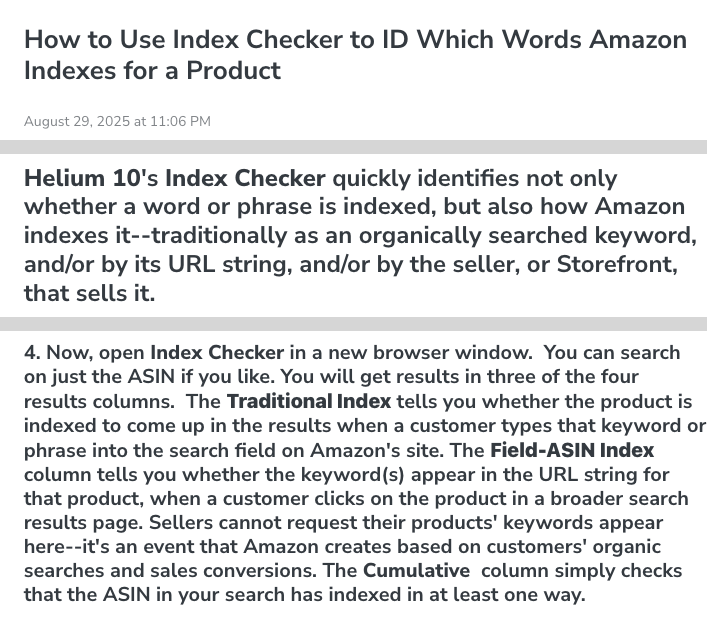
| Traditional Index | Whether the product comes up when a customer types the keyword into Amazon’s search field |
| Field-ASIN Index | Whether the keyword appears in the product’s URL string when a customer clicks it from a broader search. Sellers can’t request this; Amazon creates it from customers’ searches and conversions |
| Storefront Index | Whether the keyword is indexed through the seller’s storefront. It needs the seller ID |
| Cumulative | Whether the ASIN is indexed in at least one of those ways |
A check mark means indexed, a dash means not indexed, and an X means you didn’t include a seller ID, so the storefront wasn’t checked.
How to run an index check
- Get the ASIN from the product page, or from the Helium 10 Chrome extension’s product data.
- Build the keyword list. Helium 10’s own walkthrough runs the ASIN through Cerebro, exports the keywords to Keyword Processor to clean and de-duplicate them, then copies the list into Index Checker.
- Paste the ASIN and the keywords and run the check. Helium 10 says a long list triggers a warning that you can continue past. Its old product page, last archived in January 2023, said one check took up to 1,000 characters of search terms.
- Add a seller ID if you need the storefront column. It’s in the URL of the seller’s storefront page, which you reach from the Buy Box.
- Read the results and note every keyword that shows only dashes.
From the Chrome extension, Xray Keywords lets you select keywords, click Index Checker and enter an ASIN to run the same check without leaving Amazon.
If a keyword isn’t indexed
Helium 10’s troubleshooting article (first written in 2019) starts from the point that Amazon has decided the keyword isn’t relevant to the product. Its checks, plus Amazon’s own rules:
- Check your delivery location. Helium 10 notes that Amazon’s results differ by region, so set the “Deliver to” address to the market you sell in before checking by hand.
- Check the category. Helium 10 warns that a product moved into the wrong category, such as an adult category, loses its PPC and its visibility in general searches.
- Check for prohibited terms. Amazon’s search terms guidance bans brand names (yours or other brands’), ASINs, profanity, temporary claims such as “new” or “on sale now”, and subjective claims such as “best” or “cheapest”, and says breaking the rules can get an ASIN suppressed.
- Put the term where it’s relevant. Use it naturally in the title, bullets or description, or in the Generic keyword field. Amazon says it determines relevance automatically and “may not use all search terms supplied by sellers”.
- Ask Amazon. Helium 10 suggests opening a Seller Support case and asking why the product doesn’t appear for the term, rather than asking about indexing.
Misspellings are a special case: Amazon tells US sellers not to include common misspellings in search terms. Our Misspellinator page covers what changed.
Index Checker limits on each plan
| Plan (checked 10 October 2026) | Index Checker uses | Price |
|---|---|---|
| Platinum | 150 (no period stated) | $99/mo billed yearly, $129 monthly |
| Diamond | 300 a month | $279/mo billed yearly, $359 monthly |
| Enterprise | Full access | From $1,499/mo, billed annually |
These limits come only from Helium 10’s plan guide, because the pricing page doesn’t list Index Checker. The guide also gives the limited free account 6 uses a month; that account isn’t a plan on the pricing page. There’s no free trial of the paid plans, and Helium 10’s terms give a full refund only if you cancel within 7 days of your first purchase. Our Helium 10 pricing guide compares the plans in full.
When Index Checker is worth running
- After a launch or a listing edit, to confirm Amazon indexed the terms you wrote in.
- When traffic drops suddenly, to rule de-indexing in or out before you change bids. Helium 10’s help center suggests the same check when its free Amazon Anomaly Tracker shows a sitewide spike in ranking or indexing changes.
- Before you build a listing or ad plan around a term, because the listing can’t rank organically for a keyword it isn’t indexed for.
Listing Analyzer is the related tool for scoring the listing itself; see our Listing Analyzer guide. Whether a Helium 10 plan is worth paying for overall is covered in our Helium 10 review.
Frequently Asked Questions
What does Helium 10 Index Checker do?
It checks whether Amazon has indexed a product for each keyword you enter, using the product's ASIN. Helium 10 says it also shows how: as a traditional search result, through the field-ASIN URL string, or through the seller's storefront when you add a seller ID.
Is Helium 10 Index Checker still available?
It is still documented in Helium 10's help center, including a plan guide updated 13 May 2026 and a Chrome extension guide edited in November 2025. It no longer has its own page on helium10.com, and the pricing page's feature table doesn't list it.
How many Index Checker uses do you get?
Helium 10's plan guide lists 150 uses on Platinum without saying per what period, 300 a month on Diamond and full access on Enterprise. Its limited free account, which isn't a plan on the pricing page, gets 6 a month.
What does it mean if a keyword isn't indexed?
Amazon isn't returning your product for that search term, so the listing can't rank for it organically. Amazon says it decides automatically which supplied search terms are relevant and may not use all of them.
Why is a keyword indexed only in the Field-ASIN column?
Helium 10 says field-ASIN indexing comes from the URL string Amazon creates from customers' searches and conversions, which sellers can't request. Its help article adds that when a competitor is indexed for your brand name, it usually shows under Field-ASIN only.