Helium 10 Keyword Search History and Search Volume: Where to Find Each
Affiliate disclosure: we may earn a commission if you buy through links on this page. How we make money How we check facts

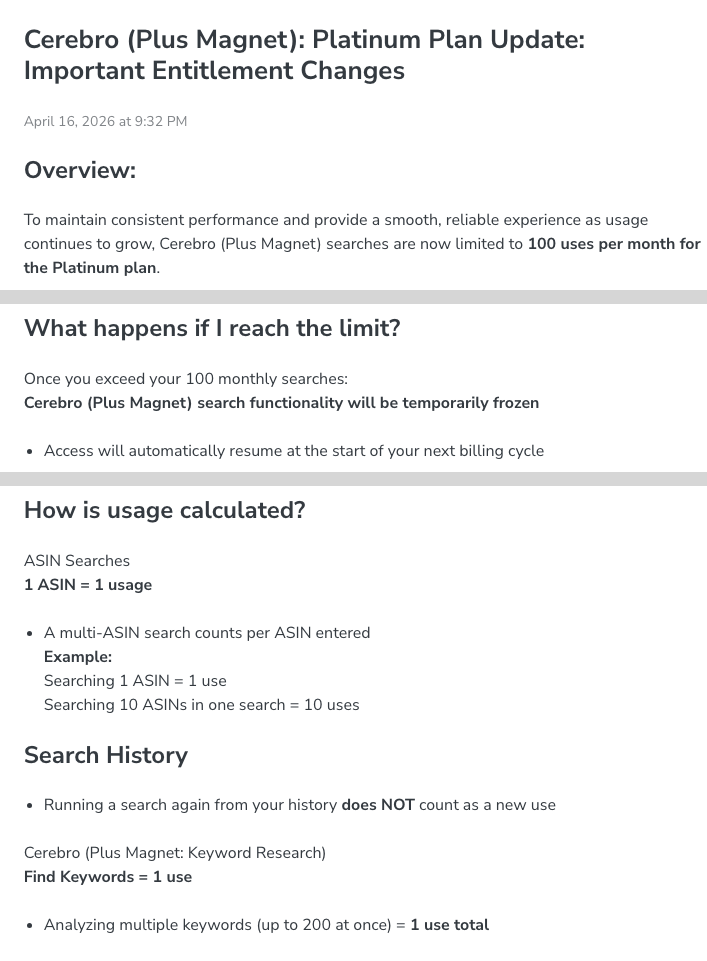
Helium 10 keeps four kinds of keyword history; two answer most questions. The History button in Cerebro, which now includes Magnet, reopens past searches with the data as it looked when you ran them. The graph icon next to any search-volume figure shows how a keyword’s estimated monthly searches have moved over 30 days, 90 days, a year or all time (Helium 10 help center, checked 10 October 2026).
Cerebro needs Platinum (100 searches a month) or Diamond Affiliate link
Correction (10 October 2026): this page previously said that reopening a saved search reruns it with current data. Helium 10’s help center says History shows the results as they appeared on the date of the original search, and re-running a search from History doesn’t count against Platinum’s monthly limit.
Four kinds of keyword history in Helium 10
| What you want | Where to find it | Plan note (checked 10 October 2026) |
|---|---|---|
| Your past keyword searches | The History button in Cerebro (including Magnet searches) and in the Chrome extension’s Xray Keywords | Cerebro needs Platinum (100 searches a month) or above |
| A keyword’s search-volume history | The graph icon next to a Search Volume figure in Cerebro or in Xray | Platinum or above for full Cerebro and Xray access |
| Your product’s rank history for a keyword | Keyword Tracker | Diamond, or the Keyword Tracker add-on on Platinum |
| Your brand’s own search-query data from Amazon | Search Query Analyzer, built on Amazon’s Search Query Performance report | Diamond and above, and you must be brand-registered |
The rank-tracking split comes from Helium 10’s pricing table, which crosses out “Track keyword rankings over time” for Platinum and sells a Keyword Tracker add-on from $19 a month. Helium 10’s help-center plan guide still lists 500 tracked keywords on Platinum, so ask Helium 10 which applies before you rely on it. The Search Query Analyzer guide (updated 21 November 2025) limits that tool to Diamond-and-above users who are brand-registered with Amazon. Our Search Query Performance guide explains Amazon’s report itself.
How to find your past searches
- Open Cerebro from the Products menu. While Helium 10 finishes merging the tools, your account may show it as “Cerebro (Plus Magnet)”, or still show Magnet separately.
- Click History in the top-right corner for a list of your previous searches.
- Use the search bar to find a product or keyword you analyzed before.
- Click Open next to an entry. Helium 10’s help center says this shows the product’s data “as it appeared on the date of your original search”, and its Magnet guide says History preserves “the exact data you viewed”.
That makes History useful for comparing then and now: open last quarter’s search, then run a fresh one to see which keywords a competitor gained or lost. On Platinum, re-running a search from History is free, while every new ASIN in a reverse search uses one of your 100 monthly searches (entitlement notice, April 2026).
Other tools keep their own history. In the Chrome extension, Xray Keywords has a History button that opens a Previous Searches window with dates and time stamps, and Listing Analyzer saves each analysis.
Can you delete Helium 10 search history?
Helium 10’s help center describes a Delete button next to saved Listing Analyzer analyses. Its Cerebro and Magnet history guides explain how to search and reopen past searches but don’t mention deleting them. If you need a search removed, ask Helium 10 support.
How to see a keyword’s search volume history
- Run a search in Cerebro, by ASIN or by keyword.
- Click the graph icon next to the keyword’s search volume figure.
- Choose the timeframe: 30 days, 90 days, one year or All Time.
- Hover over the line for the value on a date, or click and drag across the graph to zoom in.
- Use the drop-down at the top right to switch the data source between Amazon and Google, and the menu icon to download the data.
The steps come from Helium 10’s guides to search volume history (updated 20 November 2025) and its older Cerebro and Magnet version. In the Chrome extension, Xray offers the same kind of graph next to the total search volume on an Amazon search results page (Xray guide, edited 9 April 2026).
Three things to know when you read it:
- It lags by about a week. Helium 10 adds each week’s complete search volume at the end of the following week.
- Gaps aren’t zero demand. Helium 10 says gaps can appear while its database updates and are usually filled by the end of the week.
- The length varies by keyword. All Time shows whatever history Helium 10 holds for that keyword, so new terms have short lines. Cerebro’s time-period filter covers 24 months.
A keyword that climbs every November and falls in January is seasonal; one that spikes once may reflect a promotion or a news event. For product-level seasonality, see our page on Trendster, the seasonality tool Helium 10 retired in 2025, which lists what to use now.
What Helium 10 search volume measures
Helium 10 defines search volume as an estimate of how many times a keyword was searched on Amazon over the last 30 days. It calls the figure “a highly accurate estimate based on Amazon data”, but its article on where its data comes from says search volume, like its sales estimates and rank figures, is Helium 10’s own estimate from proprietary models, while tools such as Profits, Follow-Up and Alerts use data from Amazon’s API. Treat it as a way to compare keywords, not as Amazon’s own count. Our guide to how Helium 10 gets its data goes further.
Related metrics you’ll see next to it:
| Metric | What Helium 10 says it means |
|---|---|
| Search Volume Trend | How the average search volume of the past 30 days compares with the previous 30 days |
| Keyword Sales | Estimated monthly units sold through the keyword; US only, Platinum and above |
| Cerebro (or Magnet) IQ Score | The ratio of estimated search volume to the number of competing products |
| Search Frequency Rank (ABA) | Amazon’s rank of the term across all searches in a marketplace, from Brand Analytics |
Where to check Amazon search volume in Helium 10
- Cerebro, for the keywords specific ASINs rank for, and its keyword side (formerly Magnet) for related terms around a seed keyword.
- The Chrome extension, through Xray Keywords and Search Expander on Amazon pages. It’s free to install, and Helium 10’s pricing FAQ says full access needs Platinum or above; see our Chrome extension guide.
- Listing Analyzer, which shows 30-day search volume for a listing’s top keywords.
- Helium 10’s free Amazon keyword tool, which it calls a “Limited Demo of Magnet”, on its free tools page.
Walmart is different: Helium 10 labels Walmart search volume “proprietary estimates that are currently in beta”, with no exact or historical data.
Our Helium 10 features guide describes each of these tools, with plan limits where Helium 10 publishes them.
Using search volume without being misled
- Relevance comes first. A high-volume keyword that doesn’t describe your product brings clicks that don’t convert.
- Compare within a niche. A few hundred monthly searches can be worth more than tens of thousands if the term matches exactly what you sell.
- Check the trend and the history before you judge a term on one month’s figure.
- Weigh the competition. Title density, competing products and the number of sponsored ASINs show how hard a term will be.
Plan prices are in our Helium 10 pricing guide, and whether the suite is worth paying for at all is covered in our Helium 10 review.
Frequently Asked Questions
Where is keyword search history in Helium 10?
Click the History button in Cerebro, which now includes Magnet, to reopen past searches. For a keyword's search-volume history, click the graph icon next to its search volume figure in Cerebro or the Chrome extension.
Does reopening a search from History use up Platinum searches?
No. Helium 10's help center says running a search again from your history does not count as a new use against Platinum's 100 monthly Cerebro (Plus Magnet) searches.
How far back does Helium 10 search volume history go?
The graph offers 30 days, 90 days, one year and All Time, and Helium 10 says All Time shows all the history it holds for that keyword, which varies by keyword. Cerebro's time-period filter covers 24 months of rank and search-volume data.
Is Helium 10 search volume accurate?
It is an estimate. Helium 10 calls it highly accurate and based on Amazon data, but also says its search volume figures come from its own models, so use them to compare keywords rather than as exact counts.
How often does Helium 10 update search volume?
Weekly. Helium 10 says it adds each week's complete search volume at the end of the following week, and that gaps in the history graph are usually filled by the end of the week.
Can you delete your Helium 10 search history?
Helium 10 documents a Delete button for saved Listing Analyzer analyses. Its Cerebro and Magnet history guides explain how to search and reopen past searches but don't mention deleting them.